'/%3E%3Cpath fill='%23ffffff' transform='translate(256 256) scale(0.6) translate(-256 -256)' d='M501.1 395.7L384 278.6c-23.1-23.1-57.6-27.6-85.4-13.9L192 158.1V96L64 0 0 64l96 128h62.1l106.6 106.6c-13.6 27.8-9.2 62.3 13.9 85.4l117.1 117.1c14.6 14.6 38.2 14.6 52.7 0l52.7-52.7c14.5-14.6 14.5-38.2 0-52.7zM331.7 225c28.3 0 54.9 11 74.9 31l19.4 19.4c15.8-6.9 30.8-16.5 43.8-29.5 37.1-37.1 49.7-89.3 37.9-136.7-2.2-9-13.5-12.1-20.1-5.5l-74.4 74.4-67.9-11.3L334 98.9l74.4-74.4c6.6-6.6 3.4-17.9-5.7-20.2-47.4-11.7-99.6.9-136.6 37.9-28.5 28.5-41.9 66.1-41.2 103.6l82.1 82.1c8.1-1.9 16.5-2.9 24.7-2.9zm-103.9 82l-56.7-56.7L18.7 402.8c-25 25-25 65.5 0 90.5s65.5 25 90.5 0l123.6-123.6c-7.6-19.9-9.9-41.6-5-62.7zM64 472c-13.2 0-24-10.8-24-24 0-13.3 10.7-24 24-24s24 10.7 24 24c0 13.2-10.7 24-24 24z'/%3E%3C/svg%3E)
DPI vs PPI Explained: How to Check & Change Image Resolution for Print
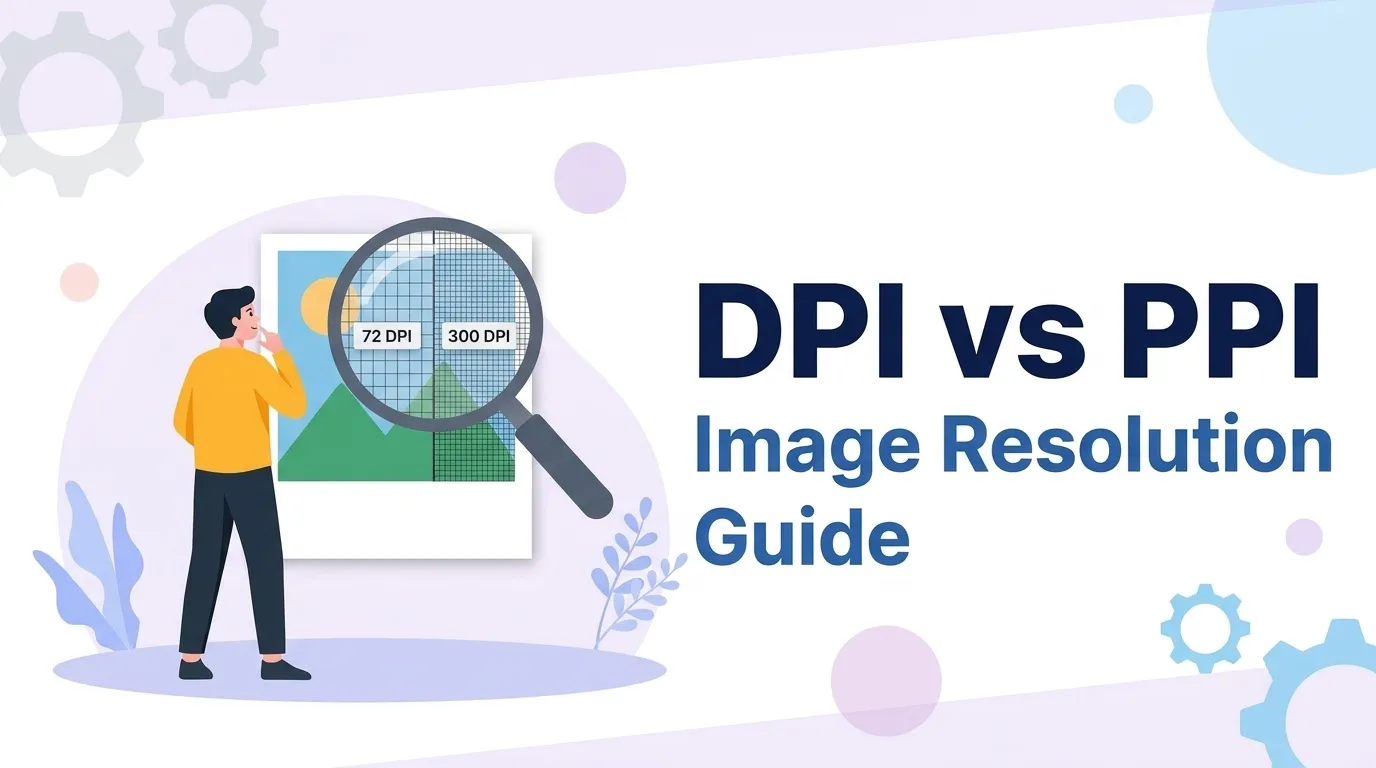
"Make it 300 DPI." It is the most-repeated and least-understood instruction in digital imaging. People raise the DPI number in an editor, see no change on screen, and send the file anyway — then the print comes back pixelated. The root cause is a single conflation: treating DPI as a quality dial you can turn up, when it is really a ratio between the pixels an image already has and the physical size it will be printed at. Once that clicks, resolution stops being mysterious.
1. PPI vs. DPI: What Each Term Actually Measures
They sound interchangeable and are used that way daily, but they describe two different things in the imaging pipeline.
A property of the image. It states how densely the file's pixels will be laid out per inch of physical output. A 3000-pixel-wide image at 300 PPI prints 10 inches wide.
A property of the printer. It states how many physical ink droplets the hardware sprays per inch. A single image pixel may be reproduced by many printer dots.
So an image has PPI; a printer has DPI. When a print service says "submit at 300 DPI", they are really specifying the image's PPI. Because every editor labels the field "DPI," the industry simply lives with the mislabel — but knowing which side of the pipeline each term belongs to is what makes the rest of resolution intuitive.
2. The 72 DPI Myth: Why DPI Is Meaningless On Screen
"Save web images at 72 DPI" is advice that refuses to die, and it is wrong. A screen renders an image by its pixel grid, full stop. A 1200×800 photo occupies exactly the same space and looks exactly as sharp whether its metadata reads 72, 96, or 300 — the number is simply not consulted during display.
For web and app images, optimize the two things that genuinely matter: pixel dimensions (match the display size, accounting for high-density screens) and file weight (compress to WebP or AVIF). The DPI tag changes neither how the image looks nor how fast it loads.
3. The Print-Size Formula: Pixels ÷ PPI = Inches
Everything about print resolution reduces to one equation. To find how large an image can print at a given quality:
Working backward, to know the pixels required for a target print size, multiply inches by the desired PPI. Here are the pixel dimensions needed for common photo prints at the 300 PPI standard used for crisp photographic output:
| Print Size | Pixels @ 300 PPI (photo) | Pixels @ 150 PPI (acceptable) |
|---|---|---|
| 4 × 6 in | 1200 × 1800 | 600 × 900 |
| 5 × 7 in | 1500 × 2100 | 750 × 1050 |
| 8 × 10 in | 2400 × 3000 | 1200 × 1500 |
| A4 (8.3 × 11.7 in) | ≈ 2480 × 3508 | ≈ 1240 × 1754 |
Large-format prints viewed from a distance — posters, banners — can drop to 150 PPI or lower because the viewer never gets close enough to resolve individual pixels. The farther the viewing distance, the lower the PPI you can tolerate.
4. How to Check an Image's DPI and Pixel Dimensions
The DPI value is stored in the file's header — the JFIF density fields in a JPEG, the pHYs chunk in a PNG. To read it along with the pixel dimensions and resulting print size:
Drop the image into the Image DPI Checker. It reads the embedded resolution, shows the pixel width and height, and calculates the real print size in inches and centimetres — all locally, with no upload.
The Image Dimensions Checker reports exact width × height — the number that actually governs how large an image can print or display.
5. Changing DPI: Metadata Edit vs. Resampling
There are two completely different operations hiding behind "change the DPI," and confusing them is why prints disappoint.
Keeps the exact same pixels and just changes the ratio. This re-labels the print size — a 3000 px image at 300 PPI prints 10 in; set it to 150 PPI and the same pixels print 20 in. No pixels are added or lost; detail per pixel is unchanged.
Actually invents or discards pixels through interpolation. Upscaling can hit a target pixel count but cannot recover detail that was never captured, so it tends to soften edges. Downscaling is lossless-looking and safe.
The reliable rule: capture or source enough pixels for your largest intended print, then only ever downscale. Starting big and shrinking preserves sharpness; starting small and upscaling never truly adds it.
6. Frequently Asked Questions
What is the difference between DPI and PPI?+
The confusion persists because image editors label the field 'DPI' even though it sets PPI. For practical purposes, when a print shop asks for '300 DPI', they mean your image should contain 300 pixels for every inch it will be printed — a PPI requirement.
Does a 72 DPI image look worse than a 300 DPI image on a screen?+
The famous '72 DPI for web' rule is a historical artifact from early Mac displays and has no effect on modern rendering. Websites should be optimized by pixel dimensions and file size, not by a DPI tag.
How do I check the DPI of an image?+
The DPI value lives in the image's header metadata (JFIF density for JPEG, pHYs chunk for PNG). Note that many images, especially screenshots and web exports, either omit it or default to 72 — which, again, is irrelevant until you print.
Can I increase an image's DPI to make it print-ready?+
The reliable path is to start with enough pixels. If you need an 8×10 inch print at 300 PPI, you need roughly 2400×3000 pixels at capture time. No metadata edit can recover detail that was never recorded.
Check Any Image's DPI and Print Size in Seconds
Drop in a photo to instantly read its DPI, exact pixel dimensions, and real-world print size in inches and centimetres. Everything runs in your browser — the image is never uploaded.