'/%3E%3Cpath fill='%23ffffff' transform='translate(256 256) scale(0.6) translate(-256 -256)' d='M501.1 395.7L384 278.6c-23.1-23.1-57.6-27.6-85.4-13.9L192 158.1V96L64 0 0 64l96 128h62.1l106.6 106.6c-13.6 27.8-9.2 62.3 13.9 85.4l117.1 117.1c14.6 14.6 38.2 14.6 52.7 0l52.7-52.7c14.5-14.6 14.5-38.2 0-52.7zM331.7 225c28.3 0 54.9 11 74.9 31l19.4 19.4c15.8-6.9 30.8-16.5 43.8-29.5 37.1-37.1 49.7-89.3 37.9-136.7-2.2-9-13.5-12.1-20.1-5.5l-74.4 74.4-67.9-11.3L334 98.9l74.4-74.4c6.6-6.6 3.4-17.9-5.7-20.2-47.4-11.7-99.6.9-136.6 37.9-28.5 28.5-41.9 66.1-41.2 103.6l82.1 82.1c8.1-1.9 16.5-2.9 24.7-2.9zm-103.9 82l-56.7-56.7L18.7 402.8c-25 25-25 65.5 0 90.5s65.5 25 90.5 0l123.6-123.6c-7.6-19.9-9.9-41.6-5-62.7zM64 472c-13.2 0-24-10.8-24-24 0-13.3 10.7-24 24-24s24 10.7 24 24c0 13.2-10.7 24-24 24z'/%3E%3C/svg%3E)
MP4 vs WebM vs MOV: Video Containers, Codecs & When to Use Each
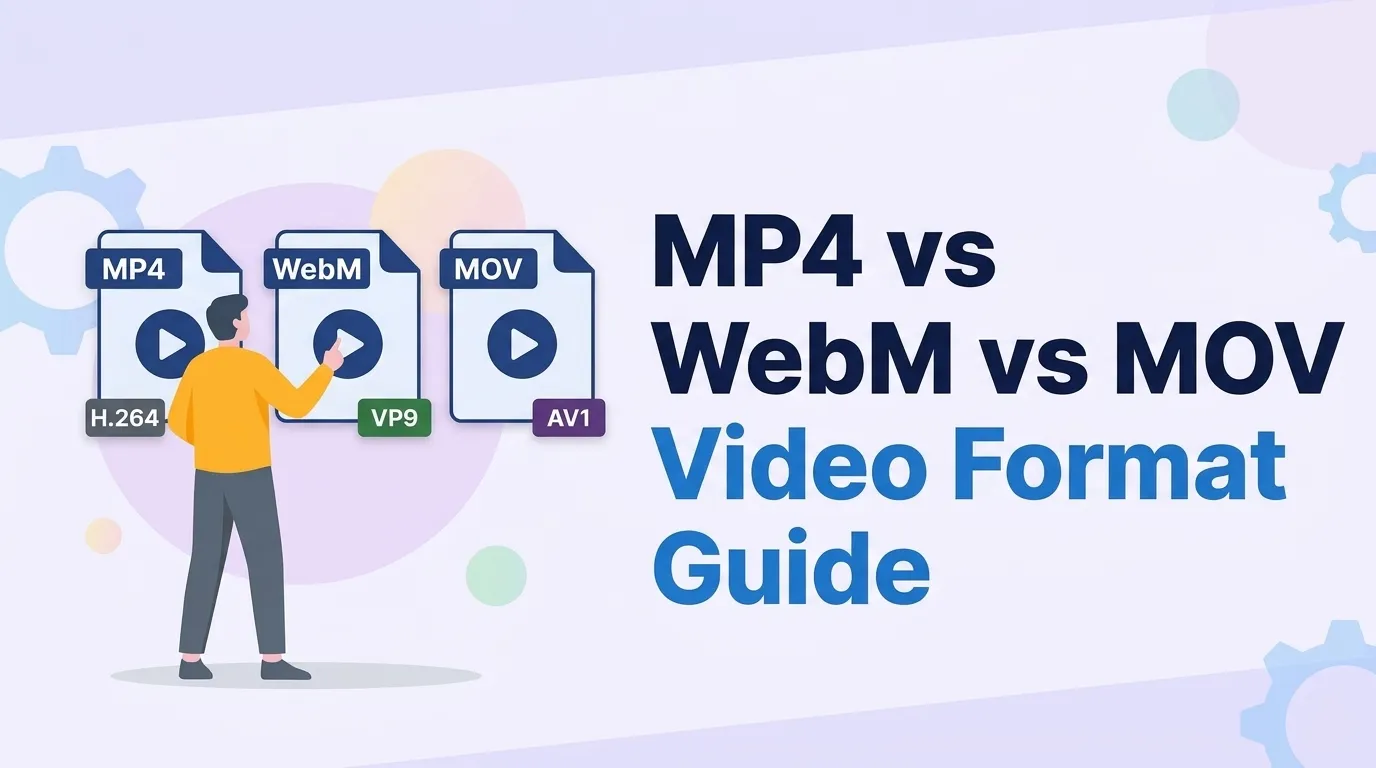
"It's an MP4, why won't it play?" is one of the most common video questions — and it reveals the single misconception behind almost every playback failure. People treat .mp4, .webm, and .mov as the whole story, when the file extension only names the container. What actually determines whether a device can play the video is the codec inside it. Get this distinction, and format choices — and the fixes when something won't play — become obvious.
1. Containers: MP4, WebM, MOV & MKV
A container multiplexes the separate streams — one or more video tracks, audio tracks, subtitles, chapter markers, and metadata — into a single file. Each container was designed with a different priority.
| Container | Origin | Strength |
|---|---|---|
| .mp4 | MPEG / ISO standard | Maximum compatibility; the universal default |
| .webm | Google, open/royalty-free | Built for the open web; pairs with VP9/AV1 |
| .mov | Apple QuickTime | Editing workflows; ProRes master files |
| .mkv | Open (Matroska) | Flexible archival; many tracks — but not web-native |
2. Codecs: H.264, H.265/HEVC, VP9 & AV1
The codec is where the real engineering trade-offs live: newer codecs compress the same quality into smaller files, but demand more processing power to encode and have narrower hardware support.
The incumbent. Largest files of the four, but hardware decoders are in virtually every device made in the last decade. The safe baseline.
Roughly half the size of H.264 at similar quality, but a tangle of patent pools left web browser support fragmented.
Google's royalty-free codec behind much of YouTube. Strong compression, broad browser support, usually in WebM.
The newest, royalty-free, and most efficient — smaller than H.265 — at the cost of slow encoding and patchy older-device decode.
3. Browser & Device Support in 2026
Support is what separates "technically better" from "actually plays." Here is the practical landscape as of 2026:
| Codec | Support | Notes |
|---|---|---|
| H.264 | Universal | Plays on every modern browser, phone, OS, and TV. |
| H.265 | Fragmented | Good on Safari/Edge; Chrome & Firefox rely on OS hardware decode. |
| VP9 | Broad | Supported across all major current browsers. |
| AV1 | Wide, with caveats | Chrome 70+, Firefox 67+, Edge 121+; Safari 17+ only on devices with an AV1 hardware decoder. |
The reliability rule: for a single file that must play for anyone, encode H.264 in an MP4. For your own web property, you can serve AV1/VP9 in WebM with an H.264 MP4 fallback via the <source> element.
4. Which Format Should You Actually Use?
MP4 / H.264. Larger file, but it will open on their device, guaranteed.
WebM (AV1 or VP9) for modern browsers with an MP4/H.264 fallback — smaller payloads, faster load, universal reach.
MOV with ProRes (or high-bitrate MP4) to preserve quality for re-editing; export a compressed delivery copy afterward.
5. Converting Video Safely & Privately
Converting means re-wrapping the container, re-encoding to a new codec, or both. Because video can be personal or confidential, where that processing happens matters.
Most "free online video converter" sites upload your file to their servers. For anything private — and to skip upload waits and size caps — prefer a converter that runs in the browser. The Video Converter transcodes locally with WebAssembly, so your footage never leaves the tab.
One more tip: every re-encode is lossy, so convert from the highest-quality source you have rather than re-compressing an already-compressed export. If you only need to shrink a file, pair conversion with the right codec rather than slashing resolution first.
6. Frequently Asked Questions
What is the difference between a video container and a codec?+
This is why two .mp4 files can behave differently: one may contain H.264 that plays everywhere, another H.265 that a given browser cannot decode. Playback problems are almost always a codec issue, not a container issue.
Which video format is the most universally compatible?+
Newer codecs like AV1 and H.265 compress far better but have gaps in device support. H.264 trades larger files for guaranteed playback — a trade that is usually worth it for broadly shared video.
Is AV1 better than H.264 and H.265?+
AV1 shines for large-scale streaming where bandwidth savings compound. For a one-off clip you need a colleague to open reliably, H.264 is still the pragmatic choice until AV1 hardware support is ubiquitous.
How can I convert a video without uploading it to a server?+
Many online converters upload your file to a backend, process it, and send it back — exposing potentially sensitive footage and capping file size by server limits. Client-side conversion removes both the privacy risk and the round-trip.
Convert Video in Your Browser — Nothing Uploaded
Switch between MP4, WebM and more without sending your footage to a server. Processing happens locally with WebAssembly, so private video stays private and there's no upload wait.