'/%3E%3Cpath fill='%23ffffff' transform='translate(256 256) scale(0.6) translate(-256 -256)' d='M501.1 395.7L384 278.6c-23.1-23.1-57.6-27.6-85.4-13.9L192 158.1V96L64 0 0 64l96 128h62.1l106.6 106.6c-13.6 27.8-9.2 62.3 13.9 85.4l117.1 117.1c14.6 14.6 38.2 14.6 52.7 0l52.7-52.7c14.5-14.6 14.5-38.2 0-52.7zM331.7 225c28.3 0 54.9 11 74.9 31l19.4 19.4c15.8-6.9 30.8-16.5 43.8-29.5 37.1-37.1 49.7-89.3 37.9-136.7-2.2-9-13.5-12.1-20.1-5.5l-74.4 74.4-67.9-11.3L334 98.9l74.4-74.4c6.6-6.6 3.4-17.9-5.7-20.2-47.4-11.7-99.6.9-136.6 37.9-28.5 28.5-41.9 66.1-41.2 103.6l82.1 82.1c8.1-1.9 16.5-2.9 24.7-2.9zm-103.9 82l-56.7-56.7L18.7 402.8c-25 25-25 65.5 0 90.5s65.5 25 90.5 0l123.6-123.6c-7.6-19.9-9.9-41.6-5-62.7zM64 472c-13.2 0-24-10.8-24-24 0-13.3 10.7-24 24-24s24 10.7 24 24c0 13.2-10.7 24-24 24z'/%3E%3C/svg%3E)
Google Merchant Center ‘Image Too Small’: How to Fix It and Audit a Catalog
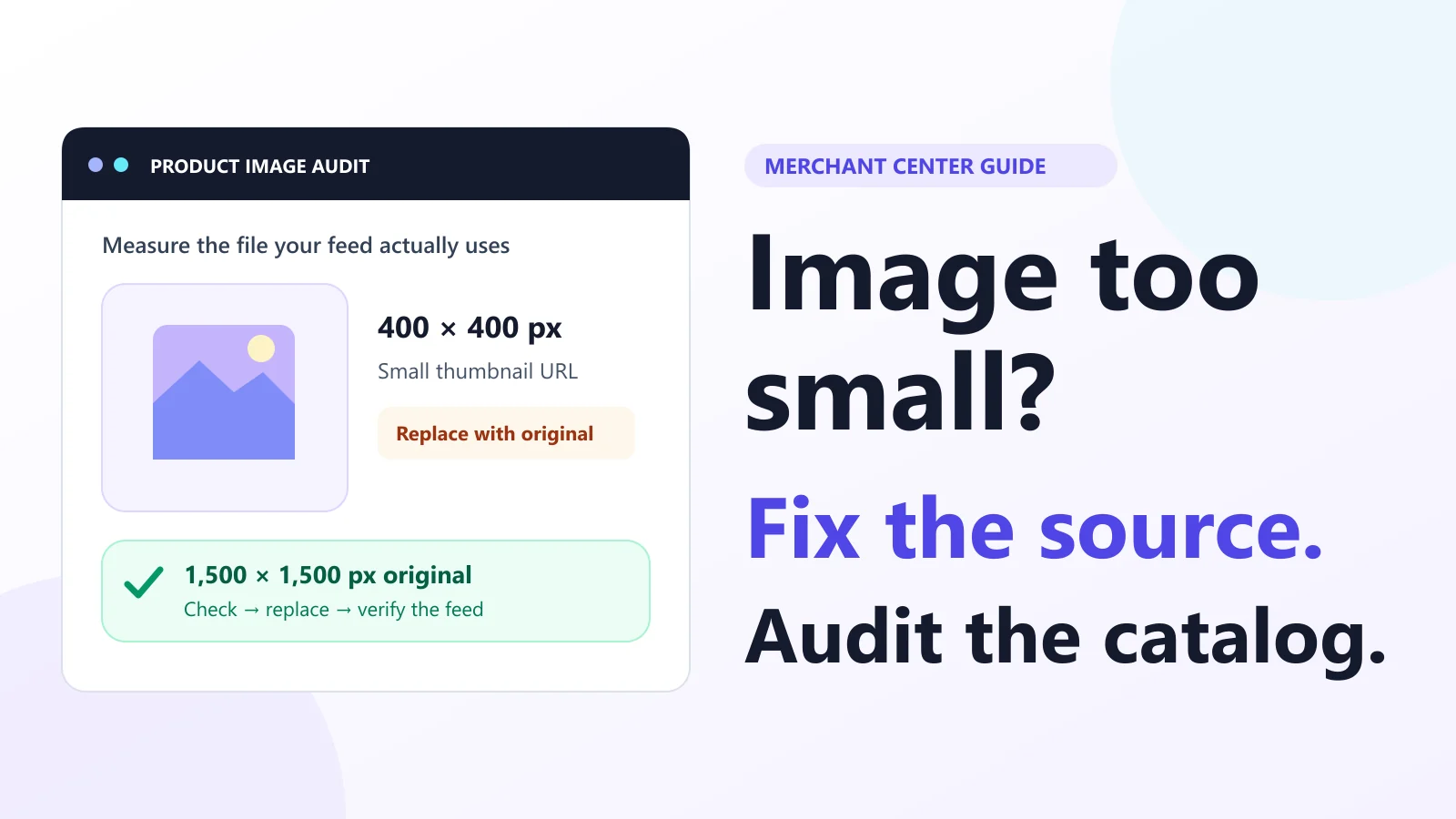
Start with the image URL Google received
You replace a small product photo in your store, yet Merchant Center keeps reporting an image-size problem. Before uploading it again, inspect the image_link value in the submitted product data. Your storefront might show a large original while a feed connector sends a thumbnail or a different variant.
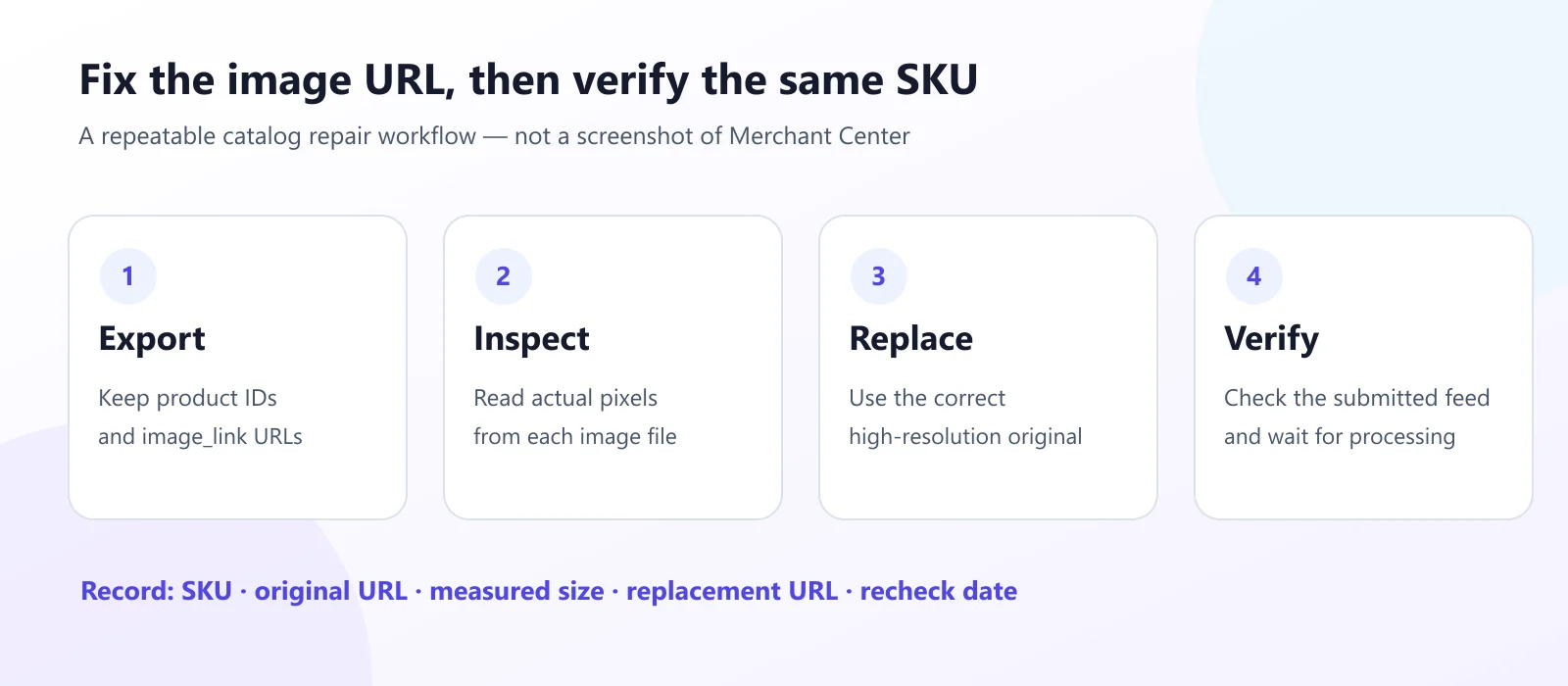
The practical fix: identify the affected SKU, measure the file at its submitted image URL, replace that reference with an accurate larger original, then verify the feed and processing status.
This guide covers a single-product repair and a repeatable CSV audit. Requirements were checked against Google's documentation on November 1, 2026. The workflow remains useful after the announced size change because thumbnail URLs, variant mismatches and stale feed mappings can recur.
1. Separate the current issue from the 2027 change
Check whether the product has an active size-related disapproval or an upcoming-change warning. Google's image-too-small troubleshooting page distinguishes the earlier category minimums from the new cross-category threshold:
| Situation | Minimum dimensions | Interpretation |
|---|---|---|
| Non-apparel before January 31, 2027 | 100 × 100 px | Earlier category minimum |
| Apparel before January 31, 2027 | 250 × 250 px | Earlier category minimum |
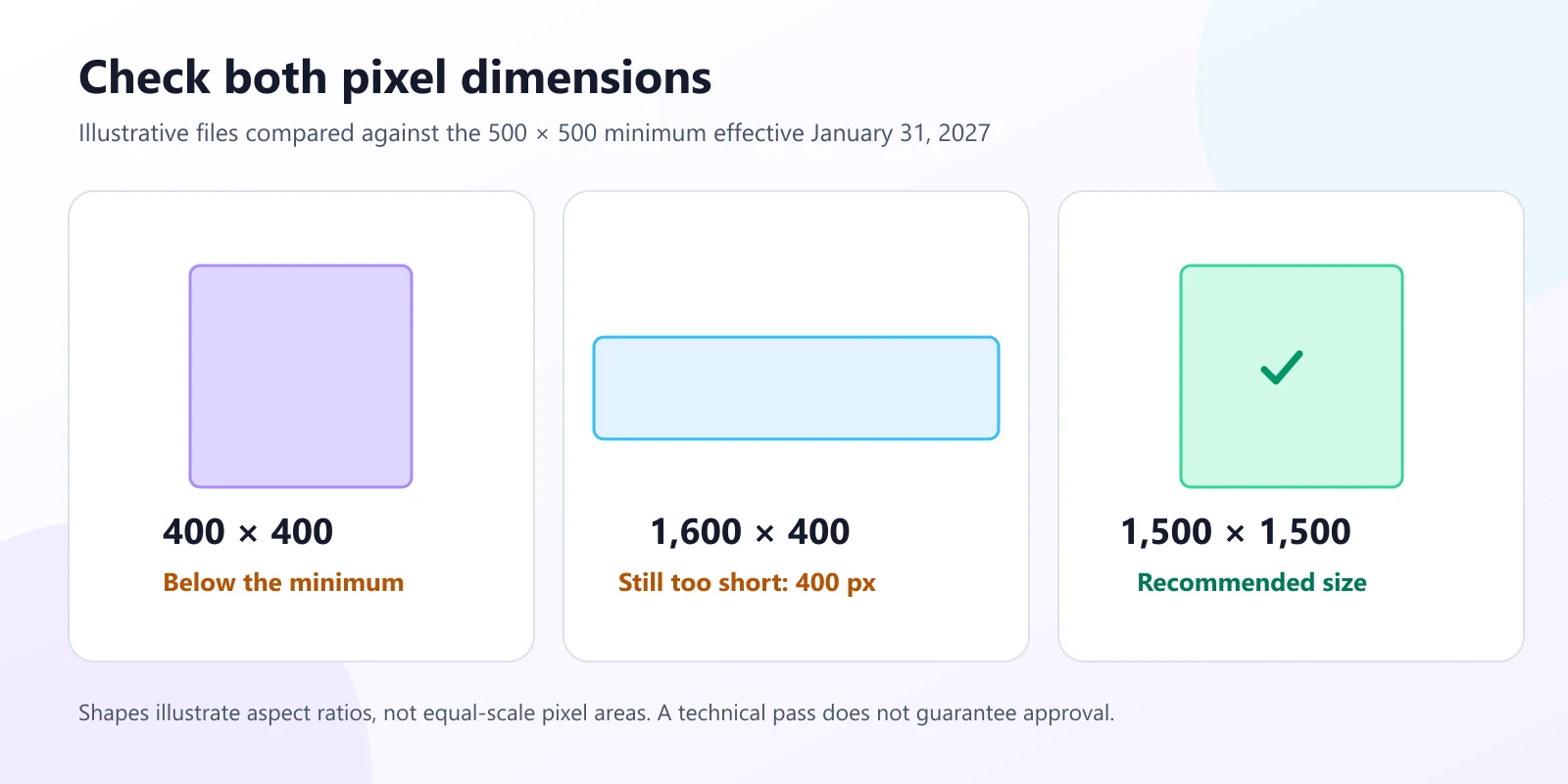
| All product categories from January 31, 2027 | 500 × 500 px | Announced enforced minimum |
| Recommended larger originals | Around 1,500 × 1,500 px or larger | Recommendation, not the minimum |
YouTube Shopping ads served on TV already require at least 500 × 500. Check the placement and the specific issue before assuming an earlier category minimum applies.
What the upcoming-enforcement warning means
The 2026 product-data specification announcement sets January 31, 2027 as the enforcement date for 500 × 500 across categories and marketing methods. It applies to both main and additional image attributes. A warning about that future threshold is not proof that the product is already disapproved for the same reason.
Google may optimize some smaller images automatically. If your account reports that optimization, inspect its current status rather than assuming every small source image has the same outcome. Supplying a suitable original still gives you a clearer asset to maintain.
For example, a 400 × 400 non-apparel image clears the earlier dimensional floor but falls short of the upcoming one. A 1,600 × 400 image has the same short-side problem: a large width cannot compensate for insufficient height.
2. Why a large storefront image can still fail
The displayed page and the submitted feed are separate evidence. A theme may select a large responsive image for a desktop visitor while the connector maps a small derivative into image_link. A CSS width of 1,200 pixels also tells you nothing about how many pixels the downloaded file contains.
- Open the affected product and copy its submitted image URL.
- Open that exact URL in a separate tab. Confirm it returns the image itself, rather than a product page, sign-in screen or expired link.
- Read the file's pixel dimensions with an image dimensions checker or use the bulk product image checker for public URLs.
- Compare it with the original asset and the feed's image-field mapping.
An illustrative mismatch is /products/mug-400.jpg in the feed while the store displays /products/mug-original.jpg. The useful change is the reference to a verified original. Do not blindly strip CDN query parameters: some select image transformations, while others are required for access or identify the correct asset.
If the URL cannot be fetched, investigate access separately. A blocked request is not evidence that its pixels are too small. Google's product image status guidance explains that image links must be public and accessible to its crawlers.
3. Audit product images from a CSV
For a catalog, keep product identity attached to every check. A unique URL list alone cannot tell you which SKUs must be corrected when several variants share one photo.
Export affected IDs, then join them to image URLs
In Merchant Center, open Products → Needs attention and inspect the image-related issue. The upcoming warnings may appear under View history; Google's troubleshooting instructions describe downloading the impacted products. If the download lacks the image attribute, match its product IDs against the actual feed export. Do not assume the report contains a column it does not provide.
id,image_link
MUG-BLUE,https://example.com/images/mug-blue-400.jpg
MUG-RED,https://example.com/images/mug-red-original.jpg
MUG-GIFT,https://example.com/images/mug-blue-400.jpg
Illustrative CSV, not a real merchant export. Preserve your own exact IDs and URL values.
Measure, filter and keep a work list
Import the CSV into the BrivTools bulk product image checker. Select the image URL column and the ID column. For advance planning, choose January 31, 2027 as the check date. The checker treats the new dimensional floor as an enforced technical check on that date; before it, the floor is an upcoming warning.
Export findings and sort them into three practical groups: images requiring replacement, images needing a visual review, and URLs whose technical properties remain unverified. In the example above, MUG-BLUE and MUG-GIFT must both remain in the work list even though their URL is reused.
The tool's earlier-date warning does not independently validate every existing category rule. Its header inspection also cannot prove that a photo is uncorrupted, shows the right variant or satisfies every visual policy. Check those points yourself. Local image files stay on your device; URL checks use BrivTools servers, with inspection limits of 32 MiB for local files and 20 MiB for remote responses.
4. Replace the image without losing product detail
Start with the original photography, supplier-approved asset or a new accurate photo. Merely stretching a thumbnail changes its pixel count without recovering the detail that was missing. An enlarged but blurry product still needs a quality review.
Keep the complete product visible and preserve its proportions. A rectangular photo can meet a minimum on both axes; a square canvas is not universally required. Our aspect-ratio guide explains the difference between cropping, proportional resizing and distortion. Changing a DPI metadata field does not change web pixel dimensions; see DPI versus PPI if those settings are being confused.
Resolution is only part of the check. Google's image_link specification lists supported formats and file limits, including 64 megapixels and 16 MB. It also covers product presentation and overlays. Use the actual encoded format, not just the filename extension.
If an otherwise suitable original is unnecessarily heavy, use the image compressor and inspect the result at a useful zoom level. Our image compression guide explains the tradeoffs. Recheck dimensions and bytes after processing. A smaller download is helpful only when the product remains clearly represented.
5. Update the source that controls the feed
Work out where the attribute comes from before editing it. It might be an uploaded file, a scheduled feed, a store connector or another product-data integration. Fix the image mapping in that source so the next sync does not reintroduce the small derivative.
For one manually maintained product, a direct image edit may be appropriate. For an integrated catalog, change the relevant store asset or connector mapping, trigger its normal sync and inspect the submitted image_link afterward. Menu names and edit permissions vary by data-source setup.
When the actual image changes, a new descriptive filename and corresponding feed URL can help Google distinguish it from a cached asset. Keep that new URL stable once correct. Repeated timestamp changes on every sync make the trail harder to audit and are not a reliable repair strategy.
Keep a minimal repair record
Record the product ID, previous URL, measured dimensions, replacement URL, new dimensions, sync time and final issue status. This makes it easier to spot a connector overwriting an edit or two variants accidentally receiving the same replacement.
6. Verify the fix before treating it as complete
Check the replacement file and the submitted attribute first, then monitor Merchant Center. A disappearing local warning or a successful third-party fetch does not establish that Google has recrawled and approved the image.
- The submitted image URL points to the intended replacement.
- The replacement has sufficient pixels on both axes and represents the correct variant.
- The URL returns the image directly and your server/CDN allows Googlebot and Googlebot-Image.
- A later feed sync preserves the replacement instead of reverting it.
- The affected product's current issue status confirms the outcome.
Google's image-processing guidance describes normal processing of a few days, with some cases taking up to 30 days. Existing products may continue to display the previous approved image during processing. Treat timing as a monitoring window, not an approval promise.
If the submitted reference is correct but the issue persists, inspect access rules, redirects, response headers and CDN behavior. A browser session can succeed while an automated fetch is challenged. Avoid deleting an otherwise functioning data source merely because an image is still being processed.
7. Prevent another catalog-wide image problem
Add an image preflight to the point where assets enter your catalog. Keep originals, document the derivative selected by the feed integration, and sample newly synced product URLs rather than checking only the storefront.
Retain the last audit CSV so you can compare product IDs and URLs after a theme migration, supplier import or connector change. Review both main and additional images. For a recurring test, track the measured dimensions and unresolved URLs instead of relying on a single overall score.
The broader Google image best-practices checklist adds the visual checks technical tools cannot settle. Review actual product presentation and keep the photo set consistent with what is sold. High pixel dimensions do not correct a wrong variant or a misleading photo.
Frequently asked questions
What does ‘Image too small for upcoming enforcement’ mean?+
Check the affected product's exact status and the image URL Google received. A 400 × 400 file and a 1,600 × 400 file both fall below the upcoming minimum because one or both dimensions are too small.
Does every product image have to be square?+
For example, 1,600 × 900 clears that dimensional threshold, while 1,600 × 400 does not. Product framing, image content and other policies still require separate review.
Will changing an image to 300 DPI fix Merchant Center?+
Inspect the actual pixel dimensions of the image returned by the submitted URL. Find a larger original or create an accurate replacement photo instead of treating print-resolution metadata as a web-size setting.
Can BrivTools automatically fix every image disapproval?+
URL access failures remain unverified. Local files stay in your browser; public URL checks use BrivTools servers. The tool also does not log in to Merchant Center or edit your store or product feed.
Why is the old image still showing after I replace it?+
Google's image-processing guidance describes a typical few-day process with some cases taking up to 30 days. A changed image can use a new filename and URL, but a new URL does not guarantee immediate approval.
Is 1,500 × 1,500 a requirement or a recommendation?+
A photo can meet the minimum and still be below the recommendation. Prefer a sufficiently detailed original, keep the file within the published size limits and inspect the product's visual presentation.
Your next check: follow one affected SKU end to end
Choose one flagged product and trace its exact image URL from the feed to the downloaded file. Find the correct larger original, update the source that supplies the attribute and verify the next submission. Once that path works, apply it to the affected catalog with product IDs preserved.
Build a product-image fix list
Import image URLs and IDs, inspect technical findings and export a catalog work list. Review visual policy and Merchant Center status separately.
Open Bulk Product Image CheckerIndependent BrivTools guide; not affiliated with or endorsed by Google. Requirements and interface labels can change. Follow the linked official documentation and the status shown in your own account.